
IOT Set Up
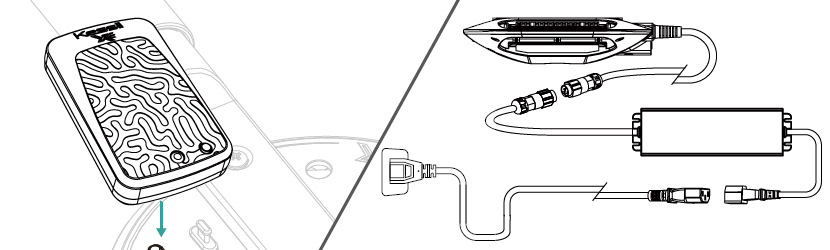
Step 1 Power On / Connection
If using a WiFi DongleXE, plug it into the K-Link port, ensuring you keep plastic covers on any unused ports and avoid close contact with mounting hardware. If using an AP9XE, simply power on the fixture.
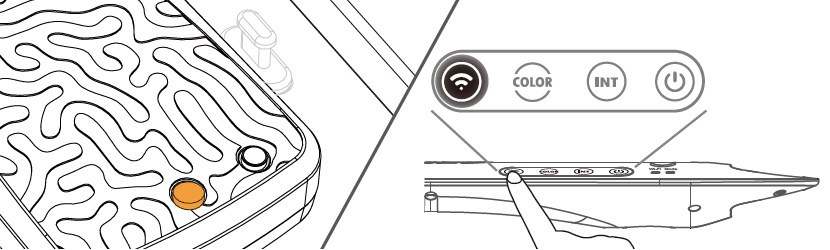
Step 2 Wait for Startup
If using a WiFi DongleXE, wait for the status indicator to turn solid orange after showing purple. If using an AP9XE, wait for the light to turn orange, indicating it is ready to connect. If not, press and hold the Wi-Fi button for 3 seconds to enable Wi-Fi.
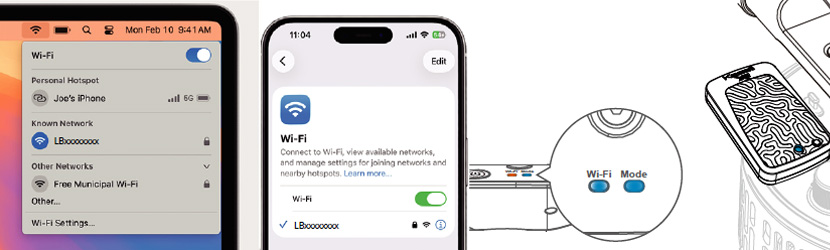
Step 3 Connect to Device Network
Join the “WiFi DongleXE”/“AP9XE” network on
your phone or PC.
Wi-Fi network: LBxxxxxxxx
Default Password: xxxxxxxxBL
(SN backwards, all caps)
Once connected, the light will turn blue.
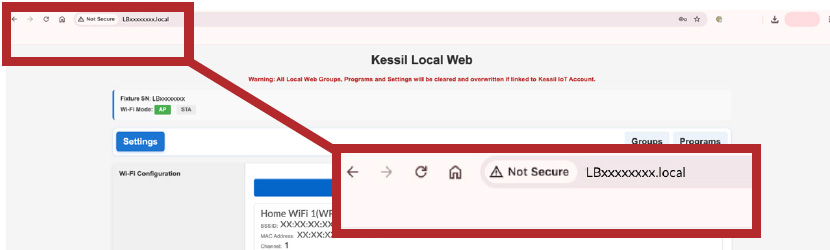
Step 4 Open Setup Page
Open a web browser and enter http://192.168.1.1 (or http://LBxxxxxxxx.local) Replace 'LBxxxxxxxx' with your specific serial number.
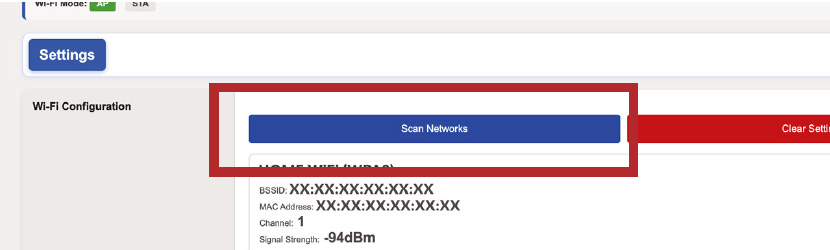
Step 5 Connect to Home Wi-Fi
Tap “Scan Networks”, select your home Wi-Fi, and enter the password.
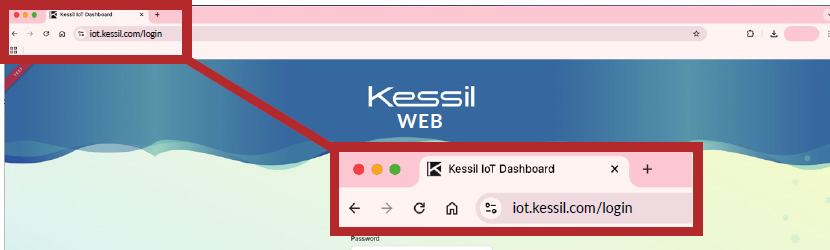
Step 6 Link Fixture
When the status indicator turns solid green, log
into the Kessil IoT webpage.
https://iot.kessil.com/login
Go to Settings > Link Fixture and scan the QR code included in the package.
